
Getting Started
To use Garage OBD you need:
- an iPhone or iPad with Garage OBD installed;
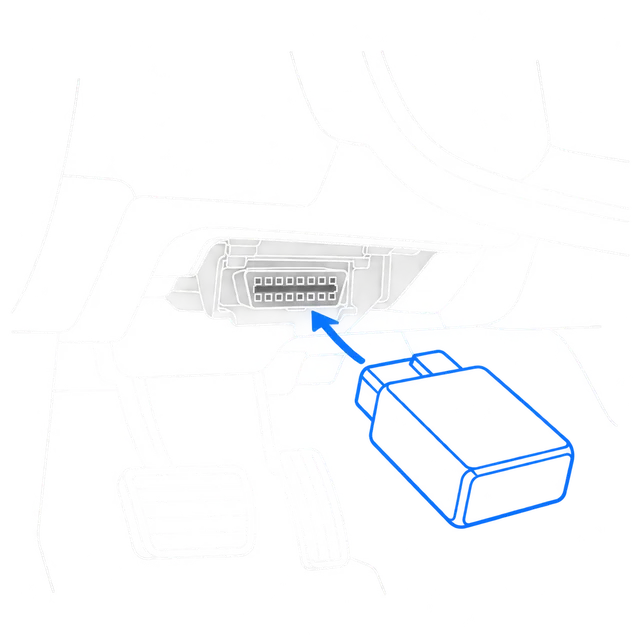
- the MHD Wi-Fi adapter (an ENET cable with a USB Ethernet adapter, or a basic Bluetooth OBD-II adapter, are supported experimentally);
- a Garage OBD account — create it in the app or at garageobd.com/app (internet is needed only to sign in);
- a compatible BMW vehicle — see Compatibility.
Before you drive, decide what you want to do — watch live values, record a tuner log or scan for faults — and set it up while the vehicle is parked.
Never interact with the app while driving. Keep your attention on the road.
Connection

Bluetooth OBD-II adapters
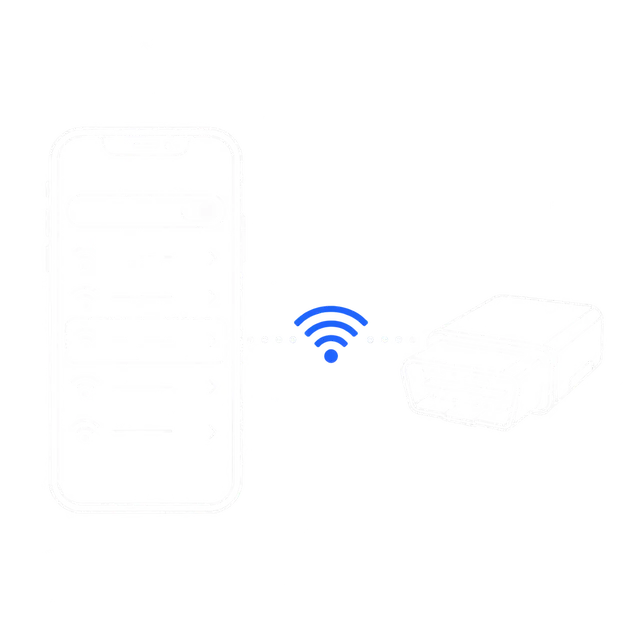
In Settings › Connection to the car (or on the home screen) you can connect through a Bluetooth Low Energy ELM327 adapter. This gives generic OBD-II data only: basic live values, generic fault codes and the VIN. The full scan, BMW-specific channels, High frequency mode and coding need the MHD Wi-Fi adapter or an ENET cable. This connection is experimental and has not been tested in a car yet.
Local network permission
The first time Garage OBD looks for your adapter, iOS asks to allow access to devices on your local network. Choose Allow — the app cannot reach a Wi-Fi adapter without it. If you declined earlier, enable it in Settings › Privacy & Security › Local Network.
Live Dashboard
Once connected, the dashboard shows live values from your vehicle. Readouts update continuously while the connection is active. Which channels are available depends on your vehicle, engine, transmission and adapter.
- Mount your iPhone securely before you set off.
- Values update more slowly when many channels are requested at once — this is limited by the adapter and the vehicle.
Account and sync
Sign in once with internet; after that the app works offline. When your iPhone is online, it syncs your real tuner logs, imported logs, scans, the engine software reading and coding backups to your account. Simulator data is never uploaded. In the app, Settings › Your account shows what is waiting to upload.
- See your cars, logs and scans at garageobd.com/app, and open log files from other tools in the web log viewer.
- Forgot your password? Use Forgot password to get a code by email.
- You can download your data (ZIP), end sessions on other devices or delete your account from Account.
Tuner Logging
- Choose a log template with the channels your tuner needs, and adjust the channels if you wish.
- Start recording while parked, then perform the run only where it is safe and legal, such as a closed course.
- Stop recording and review the session — all channels share the same timeline.
Ask your tuner which channels and gear they want. A clean pull in a single gear from low RPM to redline is the most common request.
Automatic pull recording
Turn it on in Tuner Log and the app starts recording when the pedal passes 90% of its real travel and stops when you lift. Travel is learned per car, because many pedal sensors never read 0–100%. Presses shorter than 2 seconds are discarded.
High frequency mode
Optional and off by default. The app asks the engine module to read several BMW channels in one request, so they update several times faster. It does not change the map, coding or programming, and the temporary read list is erased when you disconnect, pause or switch the ignition off. If the module doesn’t accept it, the app goes back to normal reads by itself.
Pull analysis and importing logs
Each session shows automatic observations for every pull (boost vs target, lambda vs target, timing correction per cylinder and more). They help you read the log — they are not a diagnosis. You can also import logs from MHD, bootmod3, JB4, BimmerLink and MegaLogViewer in Garage › Import log.
Diagnostics
Run a scan to query the vehicle’s control modules. Results are grouped by system — for example engine, transmission, chassis, body and safety — with the number of faults found in each.
- Keep the ignition on and the engine off during a full scan unless instructed otherwise.
- A full scan can take a while on vehicles with many modules. Keep the iPhone close to the adapter.
- Fault descriptions are informational. Have safety-related faults inspected by a qualified technician.
- BMW fault texts are shown with an automatic translation, clearly marked; the original text stays available in the fault details.
Clearing faults
From a scan, choose Clear faults. The app checks live that it is the same car, the scan is less than 30 minutes old, the engine is off and the vehicle is stopped, then asks you to hold to confirm. Modules are cleared one at a time, engine last, and the faults are read again right after.
- Clearing fixes nothing — a fault that still exists comes back.
- Clearing the engine module resets the emission readiness monitors; the car may fail an inspection until it is driven enough.
- After clearing, switch the ignition off, wait about 30 seconds and switch it back on.
Coding (experimental)
Coding is experimental, off by default and has not been confirmed on a real car yet. Use it only on your own car.
Turn it on in Settings › Advanced (developer mode, then Experimental coding). Vehicle › Coding lists the control units found in your car (head unit, cluster, climate, body) with the settings the app knows and their current values. If a setting is unavailable the app shows why — for example the module’s coding is different from the recipe, the module did not answer, or it needs BMW’s signature (Secure Coding), which the app does not write.
- Before every change the app checks that it is the same car, the engine is off, the car is stopped and the battery voltage is good, and it saves a backup of the module’s coding. Then you hold to apply.
- Use Restore original to put the saved coding back. Backups are listed in Garage › your car › Coding and can be synced to your account.
- Keep a charger connected and do not switch off the ignition or disconnect during a change.
- If a module stops working after a change, restore the backup. If that fails, a qualified coder may need to recode the module.
Exporting Logs
Logs export as CSV — one row per sample, one column per channel — in the Universal, MHD-style or MegaLogViewer (.msl / .mlg) formats, and diagnostic scans can be turned into TXT, JSON, HTML or PDF reports. Use the share button to send them through the iOS share sheet: Mail, Messages, AirDrop, Files or another app.
Your iPhone may not have internet access while it is joined to the adapter’s Wi-Fi. Disconnect from the adapter network, or use mobile data, before sharing.
Troubleshooting
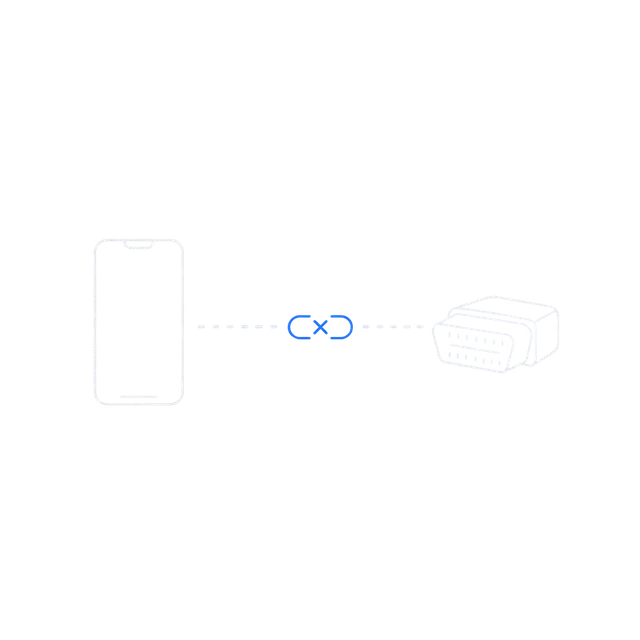
The app can’t find the adapter
For a Bluetooth adapter, also check that Bluetooth permission is on for Garage OBD and that the adapter is Bluetooth Low Energy (classic Bluetooth adapters don’t work on iPhone).
- Confirm the adapter is fully seated in the OBD-II port and its power light is on.
- Make sure the ignition is on.
- Check that your iPhone is joined to the adapter’s Wi-Fi network in Settings › Wi-Fi.
- Check that Local Network access is enabled for Garage OBD in Settings › Privacy & Security › Local Network.
- Unplug the adapter for ten seconds, plug it back in and try again.
The connection drops
- Disable “Auto-Join” for other nearby Wi-Fi networks so the iPhone does not switch away from the adapter.
- Close other apps that may be talking to the same adapter.
Some channels or modules are missing
Feature availability varies by vehicle, engine, transmission, ECU software and diagnostic interface. Some adapters do not support every protocol your vehicle uses.
Contact
Still stuck? Email us with your vehicle model and year, your adapter model, your iOS version and a short description of the problem. Attach a log or report if it helps.
Email support